
How to Split Video Online Free — No Upload Required
Split any video into clips directly in your browser. No upload, no watermark, no signup. Your files never leave your device.
Why Split a Video?
There are plenty of reasons to cut a video into smaller pieces. Maybe the file is too large for email or WhatsApp. Maybe you recorded a long meeting and only need a few key moments. Maybe you want a short clip for social media but the original is 30 minutes long.
Most online video splitters work the same way: upload your file to a remote server, wait for processing, then download the result. That means your video sits on someone else's computer, even temporarily. For personal footage, work recordings, or anything sensitive, that is a real problem.
MacroKit takes a different approach. The Video Splitter runs entirely in your browser — your files never leave your device.
How Browser-Based Splitting Works
When you drop a video file onto the tool, nothing gets uploaded. The file stays in your browser's memory, and all processing happens on your own device using WebAssembly.
Under the hood, the tool runs FFmpeg — the same open-source video processor used by professional editors and streaming platforms. The difference is that FFmpeg has been compiled into WebAssembly, a format that browsers can execute directly. You get professional-grade splitting without installing software or creating an account.
Step-by-Step Guide
Step 1: Open the Video Splitter
Go to the Video Splitter page. You will see a drop zone where you can add your video.
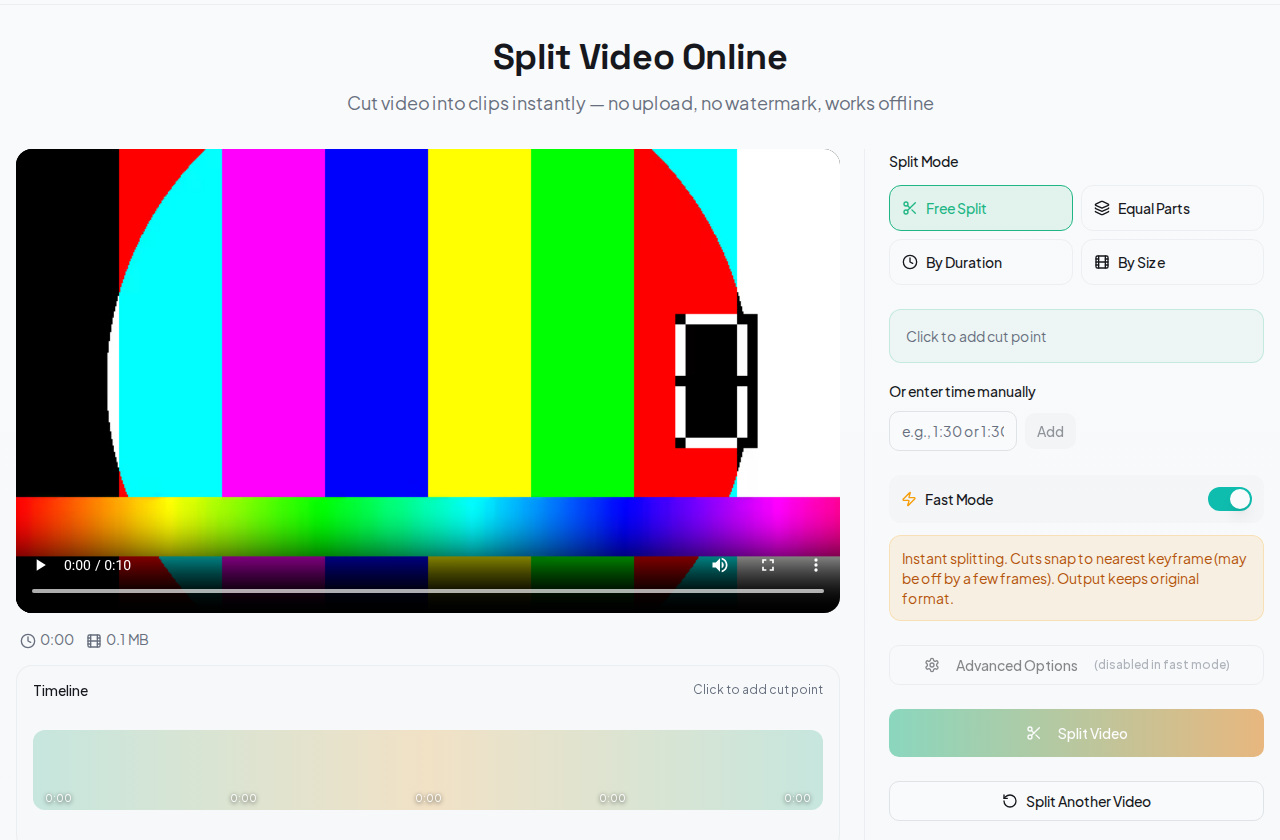
Step 2: Load Your Video
Drag and drop your video file, or click to browse. The tool supports MP4, WebM, MOV, MKV, AVI, WMV, FLV, 3GP, and many more formats. Once loaded, you will see a video preview and a timeline.
Step 3: Choose a Split Mode
There are four ways to split your video:
Free Split is the most flexible. Click anywhere on the timeline to place cut points. Add as many as you want, drag them to adjust, or type exact timestamps. Ideal when you know exactly which moments to cut.
Equal Parts divides the video into a set number of segments. Choose how many parts you want and the tool calculates the split points automatically.
By Duration splits the video into segments of a fixed length. Enter a duration like 30 seconds or 2 minutes and the tool creates segments of that length.
By Size splits based on target file size. Enter a size like 10MB and the tool estimates where to cut so each segment stays under that limit. Perfect for file-size-restricted platforms.
Step 4: Choose Fast Mode or Normal Mode
Fast Mode splits instantly by cutting at keyframes without re-encoding. The output keeps the original quality and format. Cut points may snap to the nearest keyframe, which could be a few frames off from your chosen time.
Normal Mode re-encodes the video for frame-accurate cuts. This takes longer but gives you exact cut points. You can also change the output format and quality.
Step 5: Split and Download
Click the split button. The tool processes your video right in the browser. When done, download individual clips or all clips as a ZIP file.
Supported Formats
MacroKit handles all major video formats:
- Input: MP4, WebM, MOV, MKV, AVI, WMV, FLV, 3GP, MPG, OGV, M4V
- Output: Same format (Fast Mode) or any supported format (Normal Mode)
- File size: Up to 500MB
Privacy Guarantee
Your video files never leave your device. There is no upload, no server-side processing, and no temporary storage. When you close the browser tab, the video data is gone. This makes MacroKit safe for:
- Personal and family videos
- Work recordings and meetings
- Confidential or sensitive footage
- Client deliverables
Tips for Best Results
- Use Fast Mode when you need speed and the exact frame does not matter. It is nearly instant for any file size.
- Use Normal Mode when you need frame-accurate cuts or want to change the output format.
- Large files work best on desktop. Mobile devices may run out of memory for files over 200MB.
- Chrome and Edge generally offer the best performance for WebAssembly-based tools.
Try It Now
Ready to split a video? Open the Video Splitter and drop your file. No account, no upload, no watermark — just results.
Related Guides
- How to Convert Video Format Online — Change between MP4, WebM, MKV, and 12+ formats
- How to Extract Audio from Video — Pull audio tracks as MP3, WAV, FLAC, or AAC
- All Video Tools — Browse the full collection of free video tools