
How to Convert Video Format Online — Free, No Upload
Convert video between MP4, WebM, MKV, AVI, MOV, and 12+ formats. Free browser-based converter with no upload required.
When You Need to Convert Video
Video formats exist because different platforms, devices, and use cases have different requirements. An MP4 that plays perfectly on your phone might not work in a video editor. A WebM file from a screen recording might not play on an older TV. An MKV file downloaded from the internet might not upload to social media.
Instead of hunting for a desktop converter or trusting an online service with your files, you can convert video formats directly in your browser with MacroKit's Video Converter.
How It Works
Like all MacroKit tools, the video converter runs entirely in your browser. Your video file never gets uploaded to a server. The conversion happens on your device using FFmpeg compiled to WebAssembly.
This means:
- No upload wait — processing starts immediately
- No file size queue — you are not sharing server resources with other users
- Complete privacy — your files stay on your device
- No account needed — just open the tool and convert
Supported Formats
MacroKit supports conversion between 12 video formats:
| Format | Best For |
|---|---|
| MP4 | Universal playback, social media, mobile |
| WebM | Web embedding, Chrome/Firefox |
| MKV | High quality, multiple audio tracks |
| AVI | Legacy software compatibility |
| MOV | Apple ecosystem, Final Cut Pro |
| WMV | Windows Media Player |
| FLV | Legacy Flash video |
| 3GP | Older mobile devices |
| MPG | DVD-compatible video |
| OGV | Open-source web video |
| M4V | Apple DRM-free video |
| GIF | Short animated clips |
Step-by-Step Guide
Step 1: Open the Video Converter
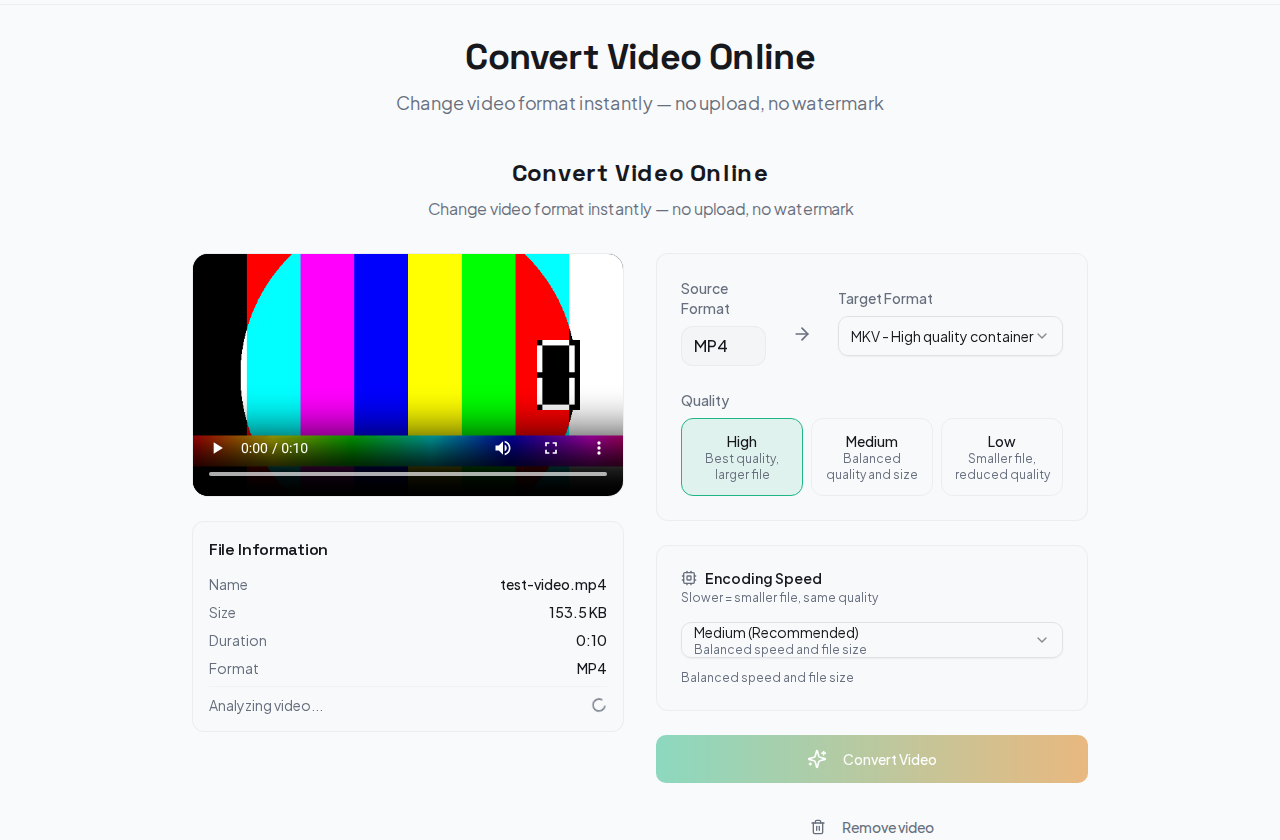
Go to the Video Converter page and drop your video file onto the upload area.
Step 2: Choose Your Output Format
Select the target format from the dropdown. The tool auto-detects your source format.
Step 3: Adjust Quality Settings
Choose between High, Medium, and Low quality. Higher quality means larger file sizes. For most uses, Medium is a good balance.
Step 4: Convert and Download
Click convert and wait for the browser to process the file. Download your converted video when done.
Common Conversion Scenarios
MOV to MP4 — The most common conversion. MOV files from iPhones and Macs are large and not universally supported. MP4 works everywhere.
MKV to MP4 — MKV files often come from downloads or rips. Converting to MP4 makes them playable on phones, TVs, and social media.
WebM to MP4 — Screen recordings from Chrome are often WebM. Convert to MP4 for editing or sharing.
MP4 to GIF — Create short animated clips from video for social media or messaging.
Tips
- MP4 with H.264 is the safest choice if you are unsure which format to use. It plays on virtually every device and platform.
- Quality settings matter more for long videos. For clips under 30 seconds, even Low quality looks good.
- Large files (over 200MB) work best on desktop browsers with plenty of RAM.
Try It Now
Need to convert a video? Open the Video Converter — no signup, no upload, no watermark.
Related Guides
- How to Split Video Online Free — Cut video into clips by duration, size, or custom timestamps
- How to Extract Audio from Video — Pull audio tracks as MP3, WAV, FLAC, or AAC
- All Video Tools — Browse the full collection of free video tools